Seeing your Google Business Profile suspended or disabled can be alarming, especially if local customers depend on Google Search and Maps to find your business.
If you’re asking, “How can I reinstate my Google Business Profile?”, the most important thing is not to rush into an appeal. First, determine why the profile may have been restricted, correct any policy problems you can identify, and prepare evidence showing that your business is legitimate and eligible.
Google provides an official appeals process for suspended and disabled profiles. However, submitting an appeal without fixing the underlying issue can reduce your chances of a smooth recovery.
Here’s how to approach the process step by step.
What Does a Google Business Profile Suspension Mean?
Google may restrict a Business Profile when the business or profile does not comply with its policies and guidelines.
Depending on the enforcement action, customers may no longer be able to access the profile, and owners or managers may lose the ability to manage it normally.
A suspension does not automatically mean your business is permanently removed.
Google provides eligible businesses with an appeals process to request reinstatement.
Before using it, however, you need to understand what may have triggered the restriction.
Why Was My Google Business Profile Suspended?
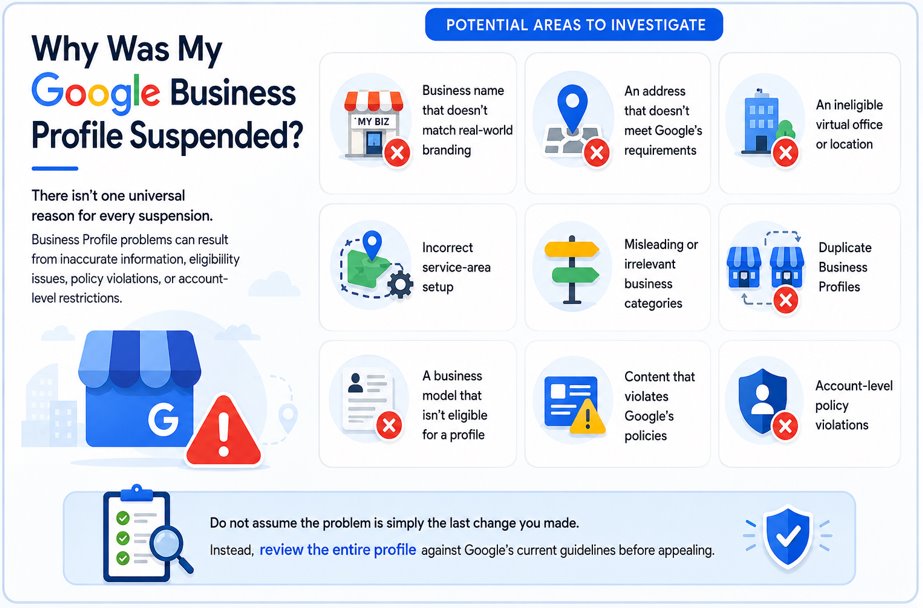
There isn’t one universal reason for every suspension.
Business Profile problems can result from inaccurate information, eligibility issues, policy violations, or account-level restrictions.
Potential areas to investigate include:
- Business name that doesn’t match real-world branding
- An address that doesn’t meet Google’s requirements
- An ineligible virtual office or location
- Incorrect service-area setup
- Misleading or irrelevant business categories
- Duplicate Business Profiles
- A business model that isn’t eligible for a profile
- Content that violates Google’s policies
- Account-level policy violations
Do not assume the problem is simply the last change you made.
Instead, review the entire profile against Google’s current guidelines before appealing.
Step 1: Review the Suspension Information
Start with the Google Business Profile appeals tool.
Sign in using the Google Account associated with the affected Business Profile.
The appeals tool can show information such as:
- The restricted profile
- The reason for the moderation action
- The relevant policy
- Whether the decision is eligible for appeal
Read the linked policy carefully.
This gives you a better starting point than making random changes to your listing and hoping one of them fixes the problem.
Step 2: Check Whether Your Business Is Eligible
Before trying to reinstate your Google Business Profile, confirm that the business itself qualifies.
Google generally requires businesses to make in-person contact with customers during their stated hours.
Eligible businesses can include storefront businesses customers visit and service-area businesses that travel to customers.
Online-only businesses without in-person customer contact generally aren’t eligible.
Other location rules can also apply.
For example, using a P.O. box or an ineligible virtual office as your business location can create problems. If you run a service-area business from a location customers don’t visit, the address generally shouldn’t be publicly displayed.
Fix eligibility-related issues before appealing whenever possible.
Step 3: Audit Your Business Name, Address, and Categories
Three areas deserve particular attention.
Check Your Business Name
Your profile should use the business name you use in the real world.
Avoid adding unnecessary keywords, locations, services, phone numbers, or promotional phrases.
For example:
Correct: Miller Plumbing
Potentially problematic: Miller Plumbing | Best Emergency Plumber Dallas TX
If the additional words aren’t genuinely part of your established business name, remove them.
Check Your Address
Your address should accurately represent your legitimate business location.
If customers don’t visit the location, review whether the profile should operate as a service-area business with the address hidden.
Also make sure your supporting documents reflect the same legitimate business details you plan to submit to Google.
Check Your Categories
Choose categories that represent what the business is, not every search term you want to rank for.
Remove irrelevant categories added only for SEO.
Accuracy matters more than trying to maximize keyword coverage.
Step 4: Fix Policy Problems Before Appealing
Once you identify likely issues, correct them where you have access to do so.
Review your:
- Business name
- Address
- Service area
- Primary category
- Secondary categories
- Phone number
- Website
- Business information
- Profile eligibility
The goal is to make the profile accurately represent the real-world business.
Do not make unnecessary changes to fields that are already correct. Focus on actual policy and accuracy problems.
Then prepare for the appeal.
Need Help Recovering Your Google Business Profile?
A suspension can affect local visibility, calls, directions, and customer acquisition. The recovery process is easier when the profile, evidence, and local SEO setup are reviewed carefully before an appeal is submitted.
Work with Salman Yousuf to review your Google Business Profile, identify potential compliance issues, and build a stronger local search presence after recovery.
Step 5: Prepare Evidence Before Starting Your Appeal
This is one of the most important parts of the process.
Google allows supporting evidence to be added after an appeal is submitted. Examples of evidence Google says can strengthen an appeal include:
- Official business registration
- Business license
- Tax certificates
- Business utility bills
- Electricity bills
- Phone bills
- Cable or internet bills
The details on your evidence matter.
Google recommends ensuring that the business name and address on submitted documents match the Business Profile you’re appealing.
Prepare everything before beginning the appeal.
Why?
Because if you choose to open Google’s evidence form, you currently have 60 minutes to submit the evidence after submitting your appeal.
You don’t want to spend that window searching through emails and folders for business documents.
Step 6: Submit Your Google Business Profile Appeal
Once you’ve reviewed the profile and prepared your evidence, you can submit the appeal.
The general process is:
- Open the Google Business Profile appeals tool.
- Sign in with the Google Account associated with the affected profile.
- Select the Business Profile you want reinstated.
- Review the restriction and policy information displayed.
- Select the decision you want to appeal.
- Submit your appeal.
- Add supporting evidence if appropriate.
- Submit your evidence within the required time window.
Your explanation should be clear and factual.
Explain why the business is eligible and how the profile complies with Google’s policies. If you corrected an issue, clearly state what was changed.
Avoid emotional arguments or lengthy explanations that don’t help prove eligibility.
Your goal is evidence, not persuasion.
Step 7: Wait for Google’s Decision
After submitting your appeal, don’t immediately send another one.
Google states that appeal reviews and decisions can take up to five working days.
You can check the status through the Business Profile appeals tool.
Possible statuses include:
| Status | Meaning |
|---|---|
| Submitted | Your appeal has been sent for review |
| Approved | Google approved the appeal |
| Not approved | Your appeal was denied |
| Can’t be appealed | The decision isn’t currently eligible |
| Eligible for appeal | You can submit an appeal |
Most importantly, Google advises businesses not to submit multiple appeals for the same issue while waiting for a decision.
Repeated submissions won’t necessarily speed up the process.

What Should You Do If Your Appeal Is Denied?
A denied appeal doesn’t necessarily mean you have reached the end of the process.
Google states that businesses may be able to request an additional review of a denied reinstatement request.
This is where stronger evidence becomes especially important.
Before requesting the additional review:
- Recheck your Business Profile against Google’s policies.
- Determine whether any compliance issue remains.
- Review the evidence from your original appeal.
- Gather additional supporting documents.
- Make sure business names and addresses match.
- Clearly explain why the business is eligible.
Google specifically allows additional evidence that wasn’t included with the original appeal to be provided during an additional review.
Don’t simply repeat the same argument with no new information.
Use the opportunity to strengthen your case.
What If My Google Account Is Restricted?
Sometimes the problem isn’t limited to an individual Business Profile.
Google can restrict an account when it determines that the account violated policy. When this happens, Business Profiles managed through that account can also be suspended, and you may be unable to create or claim other profiles.
Google’s process is different in this situation.
You first need to appeal the account restriction.
Once the account restriction is lifted, you can then submit an appeal for the affected Business Profile suspension.
This distinction is important if multiple profiles suddenly become unavailable at the same time.
Don’t Create a New Profile While Your Appeal Is Pending
One of the biggest mistakes businesses can make is creating a replacement listing immediately after suspension.
Google specifically advises businesses not to create a new Business Profile for the same business while an appeal is under review.
A second listing doesn’t solve the underlying eligibility or policy issue.
It may also create duplicate-profile complications.
Focus on fixing and appealing the legitimate existing profile instead.
Google Business Profile Reinstatement Checklist
Before submitting your appeal, run through this checklist:
| Check | Ready? |
| Business is eligible for GBP | ✓ |
| Real-world business name is used | ✓ |
| Address follows Google’s rules | ✓ |
| Service area is correctly configured | ✓ |
| Categories accurately describe the business | ✓ |
| Phone and website are legitimate | ✓ |
| Duplicate profiles have been investigated | ✓ |
| Relevant Google policy has been reviewed | ✓ |
| Supporting documents are prepared | ✓ |
| Document name/address match profile details | ✓ |
| Appeal explanation is clear and factual | ✓ |
This preparation can help you submit a cleaner, better-supported appeal.
Common Reinstatement Mistakes to Avoid
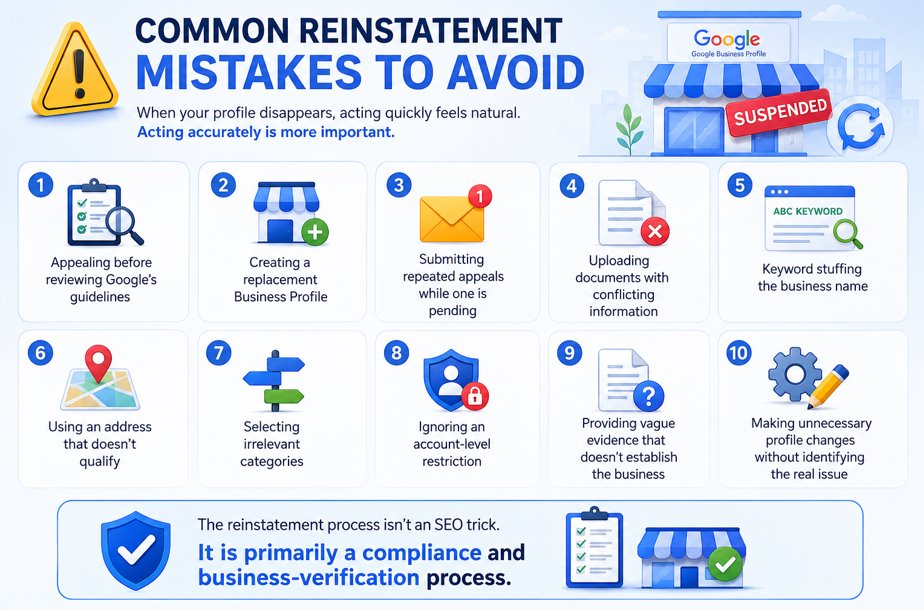
When your profile disappears, acting quickly feels natural. Acting accurately is more important.
Avoid these mistakes:
- Appealing before reviewing Google’s guidelines
- Creating a replacement Business Profile
- Submitting repeated appeals while one is pending
- Uploading documents with conflicting information
- Keyword stuffing the business name
- Using an address that doesn’t qualify
- Selecting irrelevant categories
- Ignoring an account-level restriction
- Providing vague evidence that doesn’t establish the business
- Making unnecessary profile changes without identifying the real issue
The reinstatement process isn’t an SEO trick.
It is primarily a compliance and business-verification process.
FAQs About Google Business Profile Reinstatement
How do I reinstate my Google Business Profile?
Review the reason for the restriction, check your profile against Google’s Business Profile guidelines, correct legitimate policy problems, prepare supporting evidence, and submit an appeal through Google’s official Business Profile appeals tool.
How long does Google Business Profile reinstatement take?
Google says appeal reviews and decisions can take up to five working days. More complicated situations or additional reviews may take longer, so avoid assuming a specific reinstatement date.
What documents can I use for a Google Business Profile appeal?
Google lists examples such as official business registration, business licenses, tax certificates, and business utility bills. Supporting documents should show information that matches the Business Profile you’re appealing.
What happens if my Google Business Profile appeal is denied?
Google may allow you to request an additional review of a denied reinstatement request. You can provide additional evidence that wasn’t included in your original appeal.
Should I create another Google Business Profile after suspension?
No. Google specifically advises against creating a new profile for the same business while your appeal is under review. Correct the existing profile’s issues and use the official appeal process instead.
Conclusion
If you’re trying to reinstate your Google Business Profile, don’t treat the appeal button as the first step.
Start by understanding why the profile was restricted. Review eligibility, your business name, address, service area, categories, website, and other information against Google’s current policies.
Then prepare strong evidence before submitting the appeal.
If the appeal is approved, review your profile again after reinstatement and keep its information accurate going forward. A recovered listing should become part of a stronger local SEO strategy—not return to the same problems that may have contributed to its restriction.
Need help reviewing a suspended profile or strengthening your local search presence? Connect with Salman Yousuf for Google Business Profile and local SEO support focused on accurate optimization, visibility, and sustainable business growth.